
Tutorial · macOS
Adjusting the brightness of an external monitor on Mac with MonitorControl
On a Mac, the keyboard brightness keys only work on the built-in display or on an Apple display. For any other monitor, you have to use the buttons on the back of the screen — unless you install MonitorControl. Here is how, in five minutes.
The problem
Why macOS won’t adjust your monitor’s brightness
Your monitor is not at fault: this is a feature Apple reserves for its own products.
On a MacBook, raising or lowering the brightness is a reflex: two keys, and the backlight follows. Plug in an external monitor and that reflex is gone. macOS only offers a slider for the built-in display, Apple displays and a handful of partner models. For everything else, the Displays section of System Settings shows no brightness control at all.
Yet the monitor knows how to do it. Almost every recent monitor, and every Kuycon monitor, supports the DDC/CI protocol (Display Data Channel / Command Interface). It is a command channel that travels inside the video cable itself, over USB-C, Thunderbolt, DisplayPort or HDMI, and lets the computer drive the monitor’s settings: brightness, contrast, colour temperature, volume, input source.
macOS simply does not use that channel. You need a small piece of software to do it instead. That is exactly what MonitorControl does.
The tool
MonitorControl in a nutshell
MonitorControl is a free, open-source menu bar app developed on GitHub since 2017. It detects every connected display, shows a brightness, contrast and volume slider for each, and above all it brings the keyboard’s brightness and volume keys back to life: the same on-screen animation as for the built-in display, but applied to the external monitor.
It runs on Intel Macs as well as Apple Silicon Macs, on macOS 11 Big Sur and later, and needs no driver. It collects no data and does nothing other than what you installed it for.
Step by step
Installing and setting up MonitorControl
Five steps, no command line required.
Download the app
Get the latest version from the official site monitorcontrol.app or from the project’s GitHub page, then drag it into the Applications folder. If you use Homebrew, one command is enough: brew install --cask monitorcontrol
Grant Accessibility access
On first launch, macOS asks you to allow MonitorControl in System Settings, Privacy & Security, Accessibility. This is required so the app can intercept the keyboard’s brightness keys. It reads nothing else.
Check the slider in the menu bar
An icon appears at the top right. Click it: every display has its own slider. Move the one for your Kuycon and the backlight should respond immediately. If it does, DDC/CI is working; the rest is just convenience.
Enable the keyboard keys
In the app’s settings, Keyboard tab, choose to control external displays’ brightness with the keys, then pick the display concerned. You can decide whether the keys act on all displays at once, or only on the one under the pointer.
Launch it at login
Tick automatic start in the General tab, and you will never have to think about it again. On a MacBook, also enable syncing with the built-in display: the monitor then follows the laptop’s brightness, ambient light sensor included.
Useful settings
Three options that change how you use it
Contrast and volume. The same slider exists for contrast, and for volume if your monitor has speakers. The keyboard’s volume keys then drive the monitor, exactly as they would drive an Apple display.
Dimming below the minimum. By default, MonitorControl uses the monitor’s full adjustment range. If the minimum still looks too bright in the evening, enable software dimming on top: it only kicks in once the backlight is at its lowest.
Fine adjustment. Hold Shift and Option while pressing a brightness key to move in quarter steps, just like on a MacBook’s built-in display.
Alternatives
If MonitorControl is not enough for you
| MonitorControlOpen source | LunarFree, paid Pro version | BetterDisplayFree, paid Pro version | DisplayBuddyPaid | |
|---|---|---|---|---|
| Keyboard keys | Yes | Yes | Yes | Yes |
| Automatic adjustment | Follows the built-in display | Light sensor and time of day | Yes | No |
| Beyond brightness | Contrast, volume | Curves, profiles, sub-zero | Resolutions, virtual displays, EDID | Profiles, presets |
| Learning curve | None | A few settings | Steep | None |
| Who it is for | Everyday use | Adaptive brightness | Complex setups | Those who prefer paying for simplicity |
Lunar and DisplayBuddy are presented in detail, screenshots included, on our page controlling brightness with DDC/CI on macOS, Windows and Linux.
Not working?
The slider moves, but the monitor does not respond
Nine times out of ten, the DDC command is being blocked somewhere between the Mac and the panel.
To choose the right port and the right cable, see our guide: Thunderbolt, USB-C, DisplayPort or HDMI.
Going further
What about Windows or Linux?
The same protocol can be driven from any system. On Windows, Monitorian and Twinkle Tray add a slider per display in the notification area; on Linux, ddcutil does it all from the command line. We cover them on our dedicated page: controlling brightness with DDC/CI on macOS, Windows and Linux.
Our monitors
Three Kuycon monitors designed for the Mac
All support DDC/CI, and connect with a single USB-C cable that also charges the laptop.
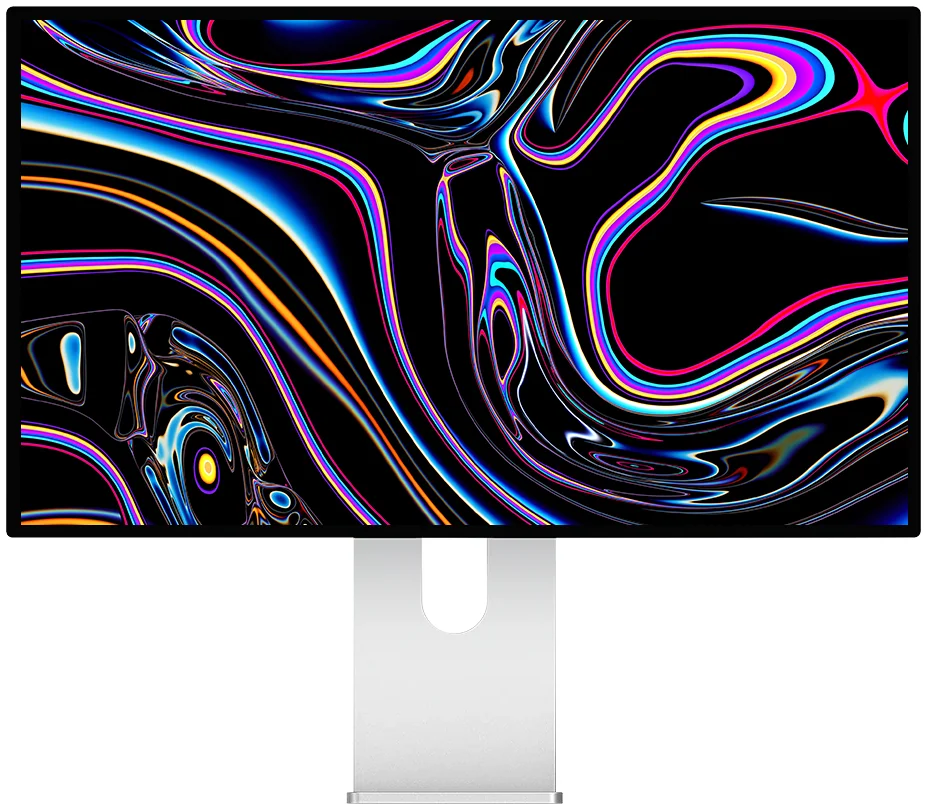
Kuycon G27P
27" · 5K · 218 ppi
From €939.00 incl. VAT
- Resolution5120 × 2880
- PanelIPS Black
- Brightness600 nits
- USB-C96 W charging
Why it is here: the same pixel density as the Studio Display, over a single USB-C cable. With MonitorControl, the MacBook’s keys adjust it as if it were made by Apple.
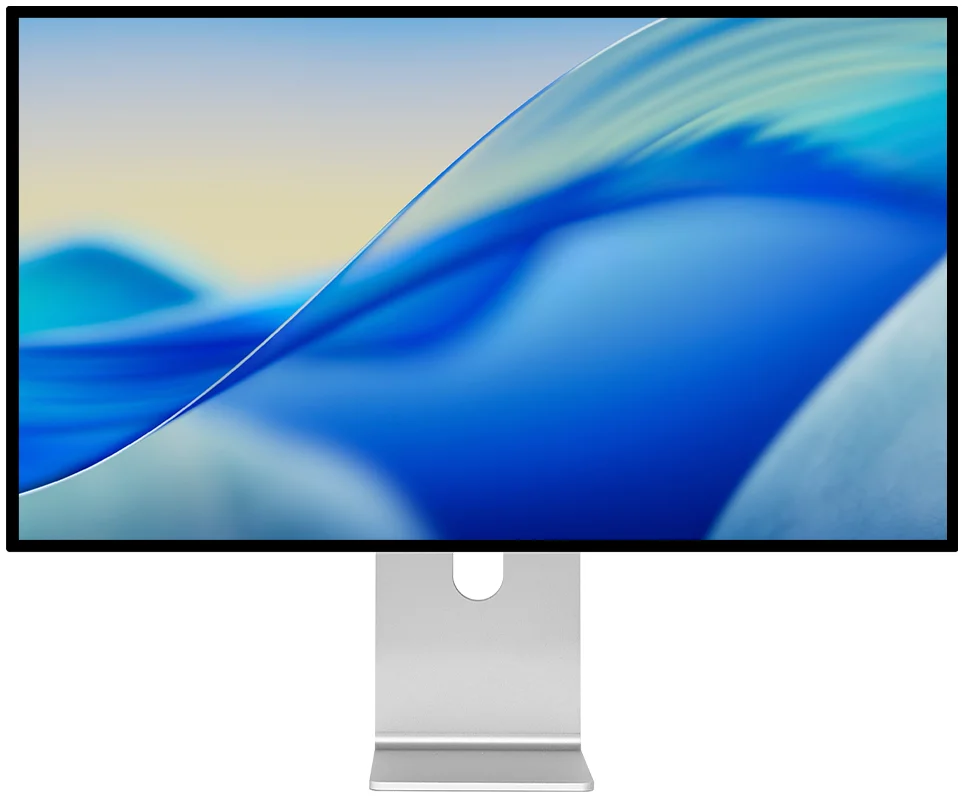
Kuycon G32P
32" · 6K · 223 ppi
From €1,329.00 incl. VAT
- Resolution6144 × 3456
- PanelNano IPS Black
- Brightness500 nits
- Contrast2000:1
Why it is here: the glossy 6K that replaces the Pro Display XDR. On a panel this contrasty, setting the backlight to its true level rather than in software changes everything.
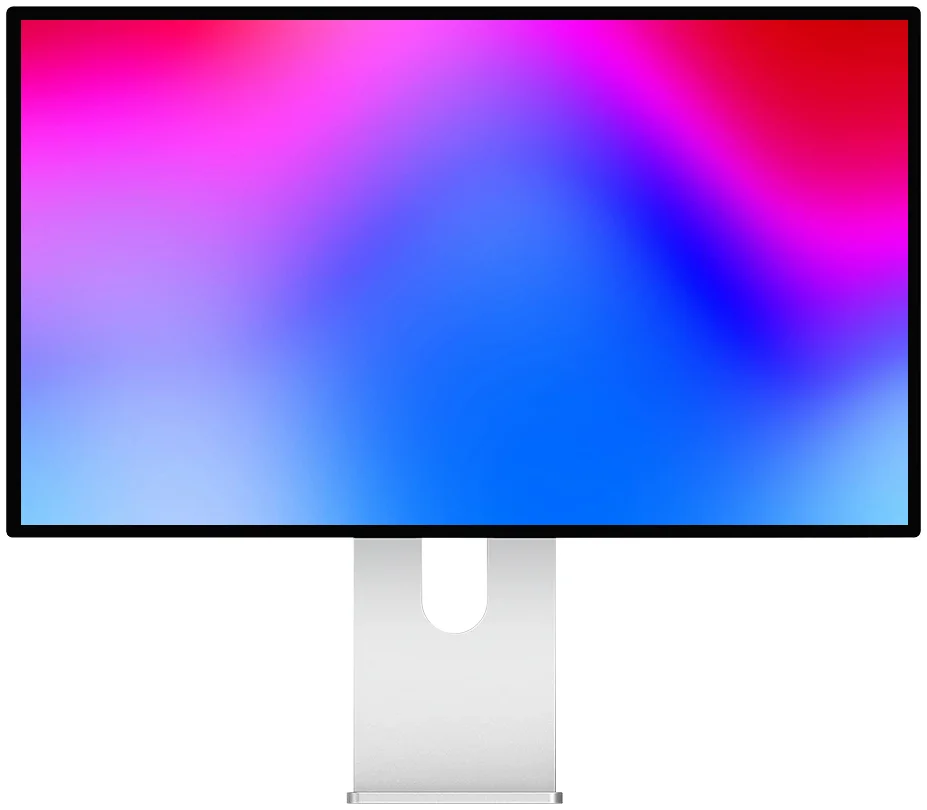
Kuycon P27Z
27" · 5K · up to 330 Hz
From €1,069.00 incl. VAT
- Resolution5120 × 2880
- Refresh rate180 Hz at 5K
- Brightness600 nits
- FinishGlossy glass
Why it is here: the silhouette of the Pro Display XDR and 5K at 180 Hz. The speaker volume is also adjusted from the Mac’s keyboard.
Prices are shown in your currency. Aluminium chassis, VESA 100 × 100 adapter and cables included; adjustable stand optional on all three models.
FAQ
Brightness on Mac: frequently asked questions
Is MonitorControl really free?
Yes. It is free software under the MIT licence, with no paid version and no ads. The code is public on GitHub, and you can support the project with a donation if you wish.
Do I need a special cable for DDC/CI to work?
No. DDC/CI commands travel through any standard video cable: USB-C, Thunderbolt, DisplayPort or HDMI. Only some adapters, KVM switches and DisplayLink docks block them.
Does MonitorControl work on M1, M2, M3, M4 and M5 Macs?
Yes. Apple Silicon Macs have been supported since version 4, and Intel Macs always have been. macOS 11 Big Sur or later is required.
Can I adjust several displays at the same time?
Yes. Each display has its own slider, and the keyboard keys can act either on all displays together or only on the one under the pointer. This is chosen in the app’s settings.
Can this adjustment damage the monitor?
No. DDC/CI sends exactly the same commands as the monitor’s buttons. It is a protocol standardised by VESA, designed for this purpose for more than twenty years.
Are Kuycon monitors compatible?
Yes, every model supports DDC/CI: G27P, G32P, P27Z, P27D, G32X, P32K, P40K and the others. Brightness, contrast and volume can all be driven from the Mac.
A monitor that obeys your Mac
5K and 6K glossy-glass monitors, driven from the keyboard like an Apple display. 2-year warranty, after-sales service in Europe.
See the rangeGuide written in September 2026. MonitorControl is independent software with no connection to Kuycon. Prices are shown in your currency and may change; check the product page.