
Layout · Updated in 2026
Building a premium desk, piece by piece
A successful workstation is not just a fine monitor: it is a whole in which nothing sticks out, nothing whines and nothing is adjusted by feel. Here is the method, in the order the decisions actually come up.
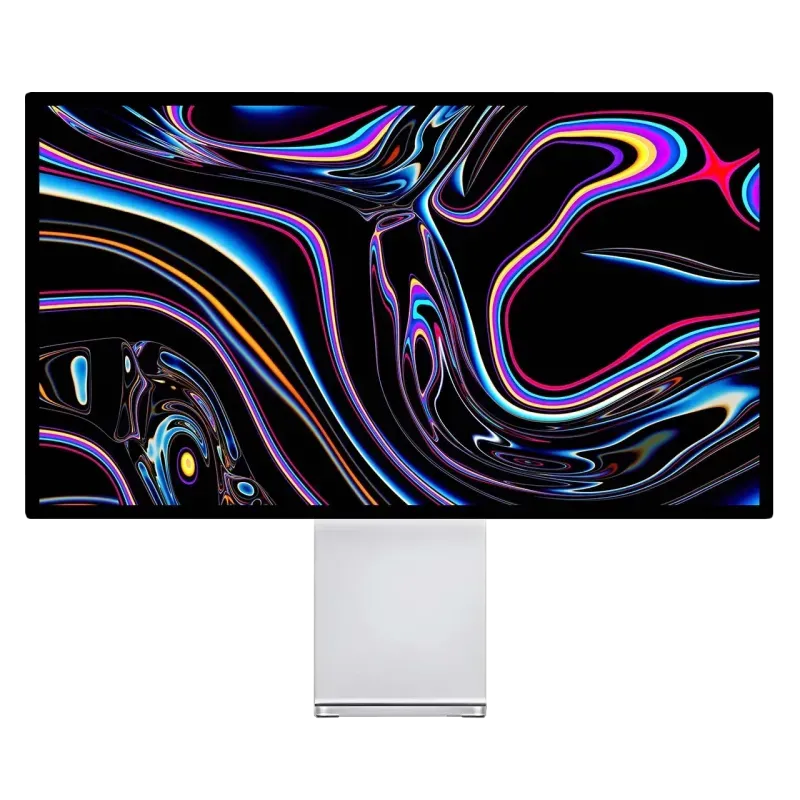
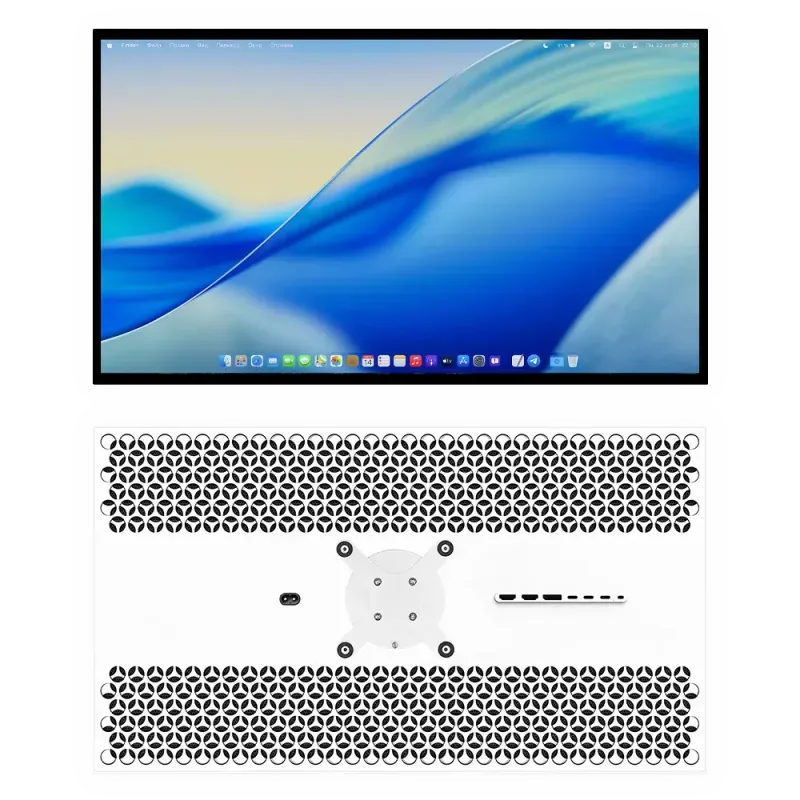
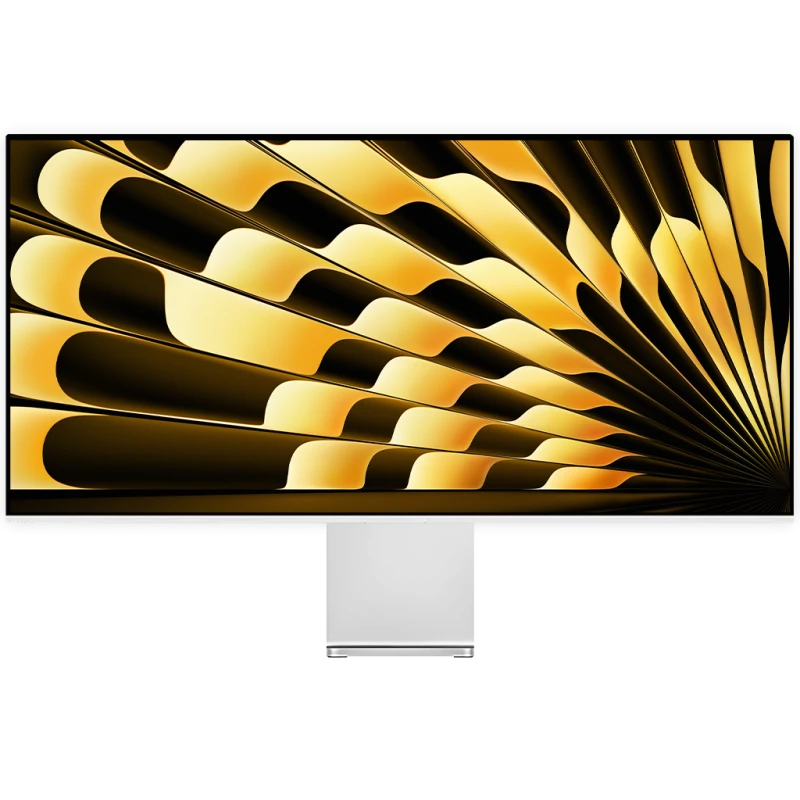
In pictures
Three setups, three compositions
The same principle each time: one monitor, one mount, one visible cable.
The method
Five decisions, in this order
Measure the depth of the desk
Before anything else. It is what sets the possible monitor size: below 70 cm of depth, a 32-inch is endured. A 27-inch is about 62 cm wide, a 32-inch about 71 cm, a 40-inch 21:9 nearly 96 cm. The formats guide details the viewing distances.
Choose density, not resolution
This is the decision that will stay with you for eight years. On a Mac, aim for Retina density: 218 ppi at 27 inches in 5K, 223 ppi at 32 inches in 6K. On an office workstation, a 32-inch 4K at 139 ppi offers an immense surface legible at 100%. It is all explained in Retina, ppi and scaling.
Decide the finish according to the room
Window behind you: matte. Controlled lighting: glossy anti-reflective. It is one of the few choices that cannot be corrected afterwards; see matte or glossy.
Free up the desktop
Adjustable stand, clamp arm, wall mount or free-standing base: it is this choice that turns a cluttered desk into a clear work surface. The VESA 100 × 100 adapter comes with every monitor; the mounting guide compares the four solutions.
Reduce it to one cable
On a laptop, USB-C carries picture, peripherals and charging: the monitor becomes the dock, and only one wire remains between the desk and the machine.
Making the cables disappear
That is what visually separates a tidy desk from an ordinary one, and it costs almost nothing.
- Plug the peripherals into the monitor, not into the computer. Keyboard, mouse, drive, headset: everything stays permanently connected to the monitor's hub, and nothing crosses the desktop.
- Route the cables through the arm when it is designed for it, or bundle them in a sleeve along the stand.
- Fix the power strip under the desktop rather than on the floor: it is the move that removes the most visible clutter.
- Leave slack on the video cable if the monitor is on a movable arm, otherwise it will unplug itself at the first height adjustment.
The details that make it comfortable
- Silence. The monitors in the range have no fan: the machined aluminium chassis dissipates the heat. In a quiet room you do not hear it because there is nothing to hear.
- Settings from the keyboard. The DDC/CI protocol saves you hunting for a joystick under the panel: brightness, contrast and temperature are controlled from the computer, and a remote control is supplied.
- Height. The top of the monitor at eye level or slightly below, at arm's length. A stand adjustable over 120 mm or an arm settle the question for good.
- Lighting. Indirect light, aimed at the ceiling or the wall behind the monitor, is less tiring than a spotlight behind you — and it removes the question of reflections before it arises.
Three compositions that work
- The stripped-down Mac setup: a 27-inch 5K on an arm, a single USB-C cable to the MacBook, keyboard and mouse on the monitor's hub. Nothing else on the desktop.
- The creative setup: a 32-inch 6K in the central position, a second monitor rotated into portrait for palettes and documentation, both on a dual column.
- The mixed work-and-play setup: a 27-inch 5K with dual mode, a desktop machine on DisplayPort, a laptop on USB-C, switching by remote. See two computers on one monitor.
FAQ
Layout: frequently asked questions
Where do you start when setting up a desk?
By measuring the depth of the desktop: it is what determines the possible monitor size. Below 70 cm, a 32-inch becomes uncomfortable. Then comes the choice of density, and after that the finish according to the room's light.
How do you reduce visible cables?
Plug all the peripherals into the monitor's hub rather than into the computer, route the cables through the arm or a sleeve, and fix the power strip under the desktop. On a laptop, a single USB-C cable is then enough for picture, data and charging.
At what height should the monitor be placed?
The top of the panel at eye level or slightly below, at about arm's length. A monitor set too high dries out the eyes, because you blink less when looking upwards.
Do the monitors make any noise?
No: they run without a fan, the machined aluminium chassis acting as a heat sink. That is real comfort in a quiet room.
Do you need a desk arm or a stand?
A stand is enough for a fixed workstation and costs less. An arm is justified on a shallow desk, to free the surface under the monitor, or to angle the panel towards someone. Both use the supplied VESA 100 × 100 mount.
A desk where nothing sticks out
VESA adapter and cables included, no fan, settings from the keyboard. 2-year warranty in the European Union.
See all Kuycon monitorsGuide written in August 2026. Specifications and box contents vary by model; check the product page before buying.